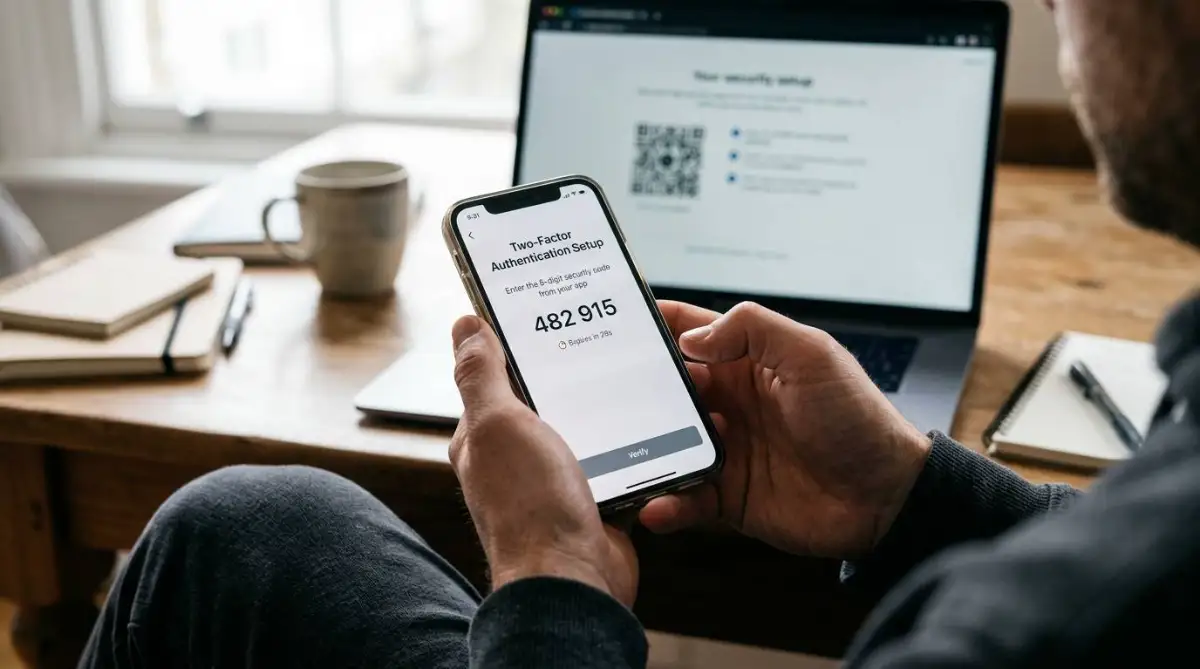
When I first realized how vulnerable my online accounts were, I learned that setting up multi-factor security is an important defense against unauthorized access. To set up two-factor authentication, you add a second verification step to your login process. You enter your password, and the website asks for another form of proof, such as a temporary code or a security key. You usually find this setting inside the Security, Privacy, or Sign-In menu of your email, bank, or social media account. SMS codes are easy to use, but an authenticator app or passkey can offer stronger protection. Once enabled, an attacker who knows your password will have a harder time accessing your account. In this guide, I will explain how to activate 2FA, choose a suitable method, and protect your recovery options.
1. Learn From a Password Security Scare
I used to think my main email account was completely safe because I used a long, complicated password. But last month, I tried to log in and saw an alarming message stating my account was locked due to suspicious activity. Someone had apparently obtained or guessed my password and attempted to access my online banking accounts.
I felt stressed. I spent three hours on the phone with customer support trying to prove my identity. The support agent asked why I had not turned on extra login security, and I admitted I thought it was too complicated. That afternoon, I sat down and secured my primary accounts. The process took less time than I expected, and I felt much more confident about my account security.
That experience taught me an important lesson: a strong password is essential, but it should not be your only line of defense. If a service offers two-factor authentication, enabling it is a practical step toward reducing the risk of account takeover.
2. Understand How Extra Login Steps Protect You
Two-factor authentication (2FA) requires two different types of verification. These typically involve something you know, such as a password, and something you have, such as a registered phone or security key. Some systems also use something you are, such as a fingerprint or face recognition.
Multi-factor authentication (MFA) is the broader term for using two or more authentication factors. Two-factor authentication is one type of MFA. You may see either term in your account settings.
For example, imagine someone obtains your password through a data breach or a fake login page. Without the additional verification method, that password alone may not be enough to access an account protected by 2FA. However, the level of protection depends on the method you choose. Some verification methods can still be tricked through phishing or account recovery attacks.
| Method | Security Characteristics | Convenience |
|---|---|---|
| Text Message (SMS) | Better than password-only access, but vulnerable to SIM-swapping and interception risks. | Easy to use |
| Authenticator App | Generates codes on your device and does not require a mobile signal to generate them. Codes can still be phished. | Easy after setup |
| Passkey | Uses public-key cryptography and is designed to resist common phishing attacks. | Usually convenient on supported devices |
| Hardware Security Key | Provides strong phishing-resistant authentication when supported by the service. | Requires a physical key |
The Cybersecurity and Infrastructure Security Agency (CISA) explains that not all MFA methods provide the same level of protection. Security keys and passkeys using FIDO-based authentication offer stronger phishing resistance than SMS codes or ordinary one-time codes. You can read its guidance in the CISA MFA guidance.
3. Follow These Steps to Secure Your Accounts Right Now
Before you start, take your smartphone and make sure it has enough battery. You should also have access to the email address or phone number currently registered with the account. The exact menu names vary between services, but the general setup process is similar.
- Start with your primary email account: Sign in to the email account you use for password resets and important online services. Protecting this account is a sensible first priority.
- Open account settings: Look for a section called Security, Privacy, Account Settings, or Sign-In Options. Some services place these settings inside a separate account management page.
- Find the two-factor option: Select Two-Factor Authentication, Two-Step Verification, Multi-Factor Authentication, or a similarly named option.
- Review the available methods: Choose an authenticator app, passkey, security key, or SMS code, depending on what the service supports. Prefer a phishing-resistant method when it is available and practical.
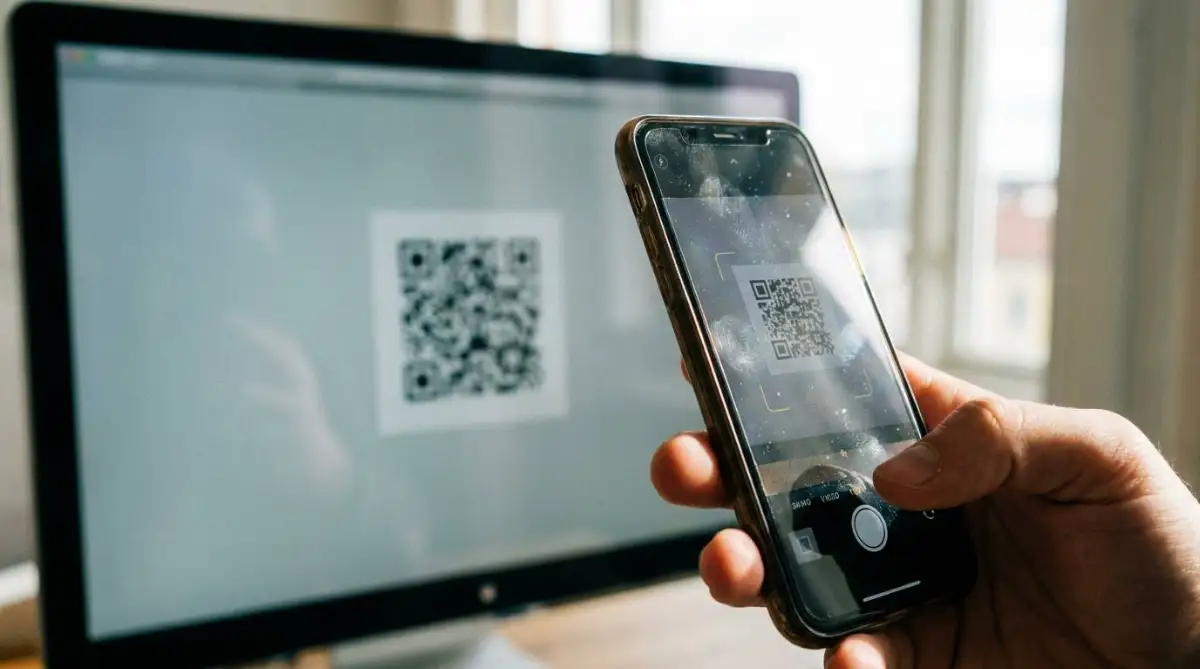
- Follow the setup instructions: If you select an authenticator app, the service may display a QR code. Open your authenticator app, choose the option to add an account, and scan the code. If you select a passkey or security key, follow the device registration instructions instead.
- Complete the verification test: Enter the temporary code or approve the verification request when prompted. This confirms that the selected method has been registered successfully.
- Save your recovery options: If the service provides backup codes, download or print them and store them somewhere secure. Also review any recovery email address, phone number, or alternative sign-in method.
Pro Tip: Secure your primary email account first. It is often used to reset passwords and recover access to other online services. If someone controls that email account, they may be able to target several of your other accounts.
Google provides its own instructions for enabling this feature. If you use a Google Account, follow the Google Account Help 2-Step Verification guide. Other providers may use different menus and recovery procedures, so always follow the instructions shown by the service you are securing.
How to Confirm That 2FA Is Working
Do not assume setup is complete simply because you clicked an Enable button. Check the account's security page and confirm that your selected method appears as active or registered. If practical, sign in again using a private browser window or another device that is not already trusted. The service should request the additional verification method when its security rules require it.
Keep your current login session open while testing a new method. If something goes wrong, you may still be able to return to the security settings and correct the configuration without losing access.
4. Compare Text Messages, Authenticator Apps, and Physical Keys
The best verification method depends on your account, devices, and the security options offered by the service. Here is how the main choices differ.
- Text Message Codes (SMS): The service sends a temporary code to your registered phone number. This is usually simple to set up and better than using only a password. However, SMS can be exposed to risks such as SIM swapping, where an attacker attempts to take control of your phone number. Use SMS if stronger methods are unavailable, but consider upgrading when possible.
- Authenticator Apps: These apps generate temporary verification codes on your phone. Once an account is configured, the app can usually generate codes without an internet connection or mobile signal. This makes it useful when travelling or when SMS delivery is unreliable. However, a fake login page can still trick someone into entering a valid code.
- Passkeys: A passkey lets you sign in using a supported device, screen lock, fingerprint, or face recognition. It uses cryptographic credentials instead of asking you to type a one-time code. Passkeys are designed to resist phishing because the credential is associated with the legitimate website or service.
- Physical Security Keys: These are small hardware devices that you register with a supported account. During login, you connect or tap the key as instructed. They can provide strong protection against fake login websites, but you should register a backup key or another recovery method where the service allows it.
For most people, an authenticator app is a useful improvement over SMS. If your email, financial, or business account supports passkeys or FIDO security keys, consider using those stronger options. The National Institute of Standards and Technology explains the role of phishing-resistant authentication in its Multi-Factor Authentication guidance.
5. Take Action to Fix Code Sync Errors
Sometimes you enter a code from your authenticator app, but the website reports that it is invalid. Before removing the account or resetting your phone, check these common issues.
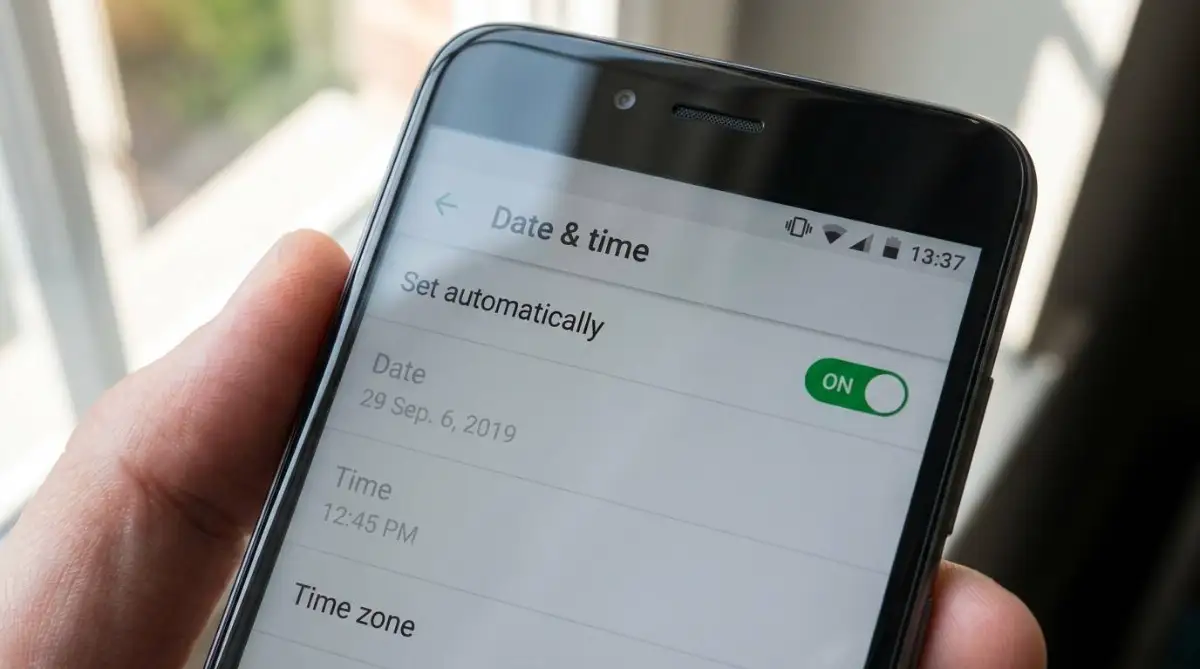
- Check phone date and time: Time-based authenticator codes depend on accurate device time. If your phone clock is incorrect, codes may fail. Open your device settings and enable automatic date and time. Then wait for a fresh code and try again.
- Wait for a new code: Many authenticator apps generate codes that change after a short interval. If a code is about to expire, wait for the next one rather than repeatedly entering an old code.
- Confirm the correct account: If your app contains several entries, make sure you are using the code for the correct website or account. Similar account names can cause confusion.
- Check SMS delivery: If a text message does not arrive, confirm that your registered phone number is correct. Check whether your device or mobile provider has filtered automated messages. You can also use another recovery method if the service provides one.
- Check the service status: A temporary service problem may prevent verification from working. If your device settings appear correct, wait briefly and try again through the official website or app.
Do not repeatedly approve login prompts that you did not initiate. If an unexpected verification request appears, reject it. Change your password through the official service and review recent account activity if you suspect someone is trying to access your account.
6. Avoid Mistakes That Lock You Out
- Do not ignore backup codes: A lost or damaged phone can make account access difficult. Save recovery codes when they are offered, and keep them somewhere separate from your phone.
- Do not reuse weak passwords: 2FA is an additional security layer, not a replacement for strong passwords. Use a unique password for each important account. A reputable password manager can help you create and store them.
- Do not delete your authenticator app without checking first: Before changing phones or uninstalling an app, confirm how your accounts will be transferred or recovered. Some apps support secure account transfer or encrypted backup, while others require you to register the new device separately.
- Never share verification codes: A genuine support representative should not need you to disclose a one-time login code. Someone pretending to be a bank, service provider, or technical support agent may ask for it to take over your account.
- Do not approve unexpected login requests: Repeated notifications can be an attempt to pressure you into approving a login. Only approve a request when you personally started the sign-in process and the displayed details match.
- Keep recovery information current: Update your recovery email and phone number when they change. An old number or inaccessible email address can make account recovery much harder.
A Simple Account Security Checklist
Use this checklist after enabling two-factor authentication on an important account:
- Confirm that 2FA is shown as enabled in account settings.
- Register an authenticator app, passkey, or security key where available.
- Save the backup codes in a secure location.
- Check that your recovery email and phone number are current.
- Review trusted devices and remove devices you no longer use.
- Check recent sign-in activity for unfamiliar locations or devices.
- Use a unique password for the account.

7. Answer Common Two-Factor Authentication Questions
What happens if I lose my smartphone?
If you lose your phone, your recovery options depend on the service and the methods you registered earlier. You may be able to use a backup code, a second registered device, a passkey synced through a supported account, or the provider's official account recovery process. Once you regain access, remove the lost device from your account and register a replacement method. If you suspect the phone was stolen, secure your mobile carrier account and other important accounts as well.
Do I have to enter a code every single time I log in?
No. Many services allow you to mark a personal device or browser as trusted. The service may then reduce how often it asks for another verification step. The exact behaviour depends on the platform, browser, device, and risk checks. Avoid trusting public or shared computers, because another person may be able to access the same browser session.
Can I use two-factor authentication on multiple devices?
Some services allow more than one authenticator, passkey, or security key to be registered. This is useful if you want a backup device. However, the process differs between providers. Check the account's security settings before scanning a setup QR code on multiple devices. For additional privacy guidance, consult our critical security settings every smart home owner should check.
Is an authenticator app completely safe from phishing?
No. Authenticator apps are generally a better option than SMS in several situations, but a criminal can still trick you into entering a temporary code on a fake website. Passkeys and FIDO security keys provide stronger phishing resistance because they are designed to verify the legitimate website during authentication. Always check the website address before signing in.
Should I enable 2FA on every online account?
Enable it wherever the service offers a suitable option. Prioritize your primary email, banking and financial accounts, social media profiles, cloud storage, and password manager. These accounts may contain sensitive information or provide access to other services. If a platform does not offer 2FA, use a unique password and review its other available security controls.
Disclaimer: This article provides general educational information about account security. The exact setup and recovery process varies by provider. Follow the official instructions for your particular service.
Take action right now: Open your primary email account settings, navigate to Security, and enable two-factor authentication. Save your recovery options before you finish. Then secure your banking, social media, and other important accounts. A few minutes of preparation can make it much harder for someone to access your accounts with a stolen password.