
To check laptop battery health on Windows and Mac, you must look past the percentage on your screen and access the hidden system reports. On a Mac, hold the Option key, click the Apple menu, select System Information, and click Power to see your maximum capacity and cycle count. On Windows, right-click the Start button, open Command Prompt, type powercfg /batteryreport, and press Enter. This generates an HTML file in your user folder. Open it in any web browser to compare your design capacity against your full charge capacity. This guide will show you how to read these numbers.
1. Learn From a Sudden Laptop Shutdown
Two years ago, I sat in a coffee shop preparing to pitch a project to a new client. My laptop taskbar showed a 70% charge. I assumed I had at least three hours of power. Thirty minutes into the presentation, the screen went completely black. The laptop shut down without a single low-battery warning.
I had to finish the pitch using my smartphone. At first, I thought a virus was draining my power. Later that evening, I learned how to generate the hidden diagnostic report. The numbers showed that the battery's current full-charge capacity was much lower than its original design capacity. The percentage on the taskbar had not been a battery-health reading; it had only shown the estimated charge remaining in a worn battery.
2. Understand the Three Battery Metrics
Your laptop's battery percentage tells you how much charge the system estimates is currently available. It does not tell you how much energy the battery could store when it was new. To understand battery wear, look at design capacity, full-charge capacity, and cycle count.
- Design capacity: The amount of energy the battery was designed to store when new. It is the reference figure shown in the report.
- Full-charge capacity: The system's current estimate of how much energy the battery can hold when fully charged. This value normally decreases as the battery ages.
- Cycle count: The number of equivalent full charge cycles the battery has completed. Using 50% of the battery one day and 50% the next is approximately one full cycle, even though you did not drain it to zero in one session.
To estimate remaining capacity, divide full-charge capacity by design capacity and multiply by 100. For example, 40,000 mWh divided by 50,000 mWh equals 80%. This estimate does not guarantee a particular number of hours.
| Metric | What it tells you | How to use it |
|---|---|---|
| Design capacity | Original rated capacity | Use as the comparison baseline |
| Full-charge capacity | Current estimated maximum capacity | Compare it with design capacity |
| Cycle count | Accumulated equivalent full cycles | Compare with the limit for your exact model |
Cycle-count limits vary by model. Check your manufacturer's specifications instead of assuming every laptop battery is rated for 1,000 cycles.
3. Generate and Read a Battery Report in Windows
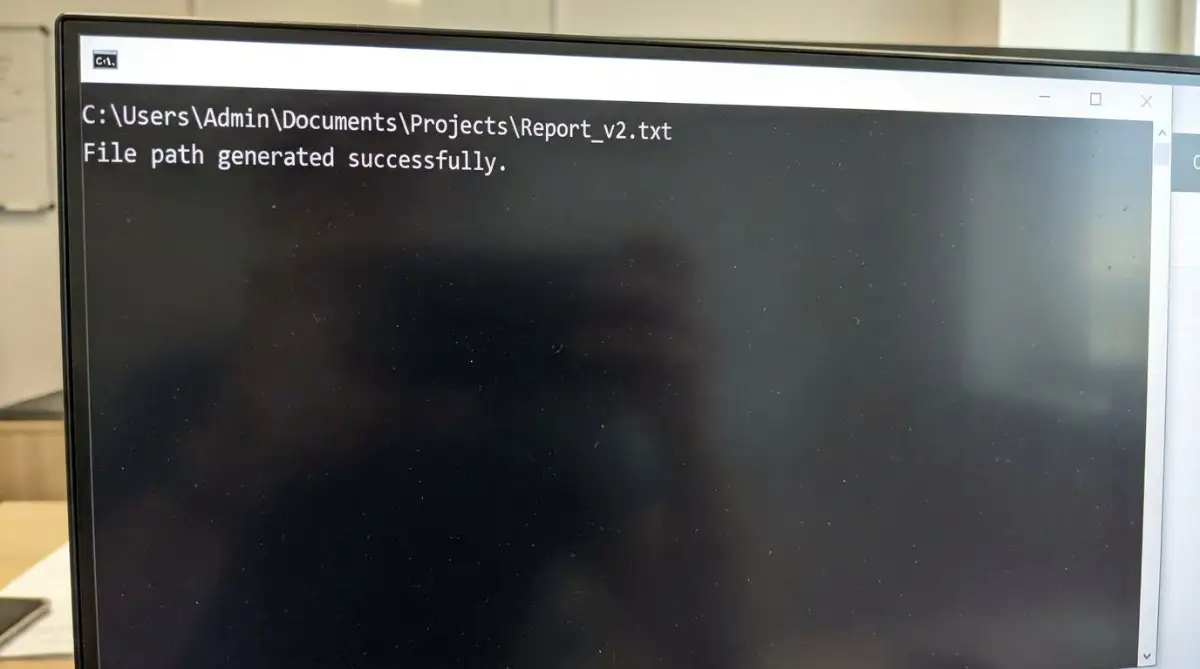
Windows includes a built-in command that creates an HTML battery report. Microsoft documents this feature for Windows 11. The command is also commonly available on supported Windows 10 laptops, although the report's layout and available details can vary by device. See Microsoft's official instructions for generating a Windows battery report.
- Save your work, then open the Start menu and type Command Prompt.
- Right-click Command Prompt and choose Run as administrator if Windows requests elevated permission.
- Type
powercfg /batteryreportand press Enter. Keep the space between the command and the slash. - Read the file path displayed in the Command Prompt window. Windows normally saves an HTML file in your user folder unless a different output path is specified.
- Open File Explorer, go to that location, and double-click the battery report HTML file. It should open in your default web browser.
- Find the Installed batteries section. Compare Design Capacity with Full Charge Capacity. Also review Recent Usage, Battery Usage, and Battery Capacity History if those sections are available.
You can also specify an output location with the command's /output option. If Windows does not recognize the command, check the spelling and confirm that the device has a supported battery.
Before comparing reports, note the unit shown beside each capacity value. Windows may display capacity in milliwatt-hours (mWh), while some tools use other units. Compare values from the same report and in the same unit. If a replacement battery has been installed, the report may show a different design capacity from the original battery; use the replacement battery's own rated capacity where available.
Do not judge the battery from one number alone. Compare capacity with actual runtime. If the figures look reasonable but the laptop still shuts down unexpectedly, check the charger, power settings, temperature, and hardware.
4. Check Battery Health on a MacBook
On a MacBook, you can check battery condition in System Settings and find the cycle count in System Information. The exact labels depend on your macOS version and Mac model. Apple's official Mac battery cycle-count instructions explain where to find this information.
- Open the Apple menu and choose System Settings.
- Select Battery.
- Look for Battery Health or the information button beside it. Review the displayed condition and maximum capacity if your Mac shows these details.
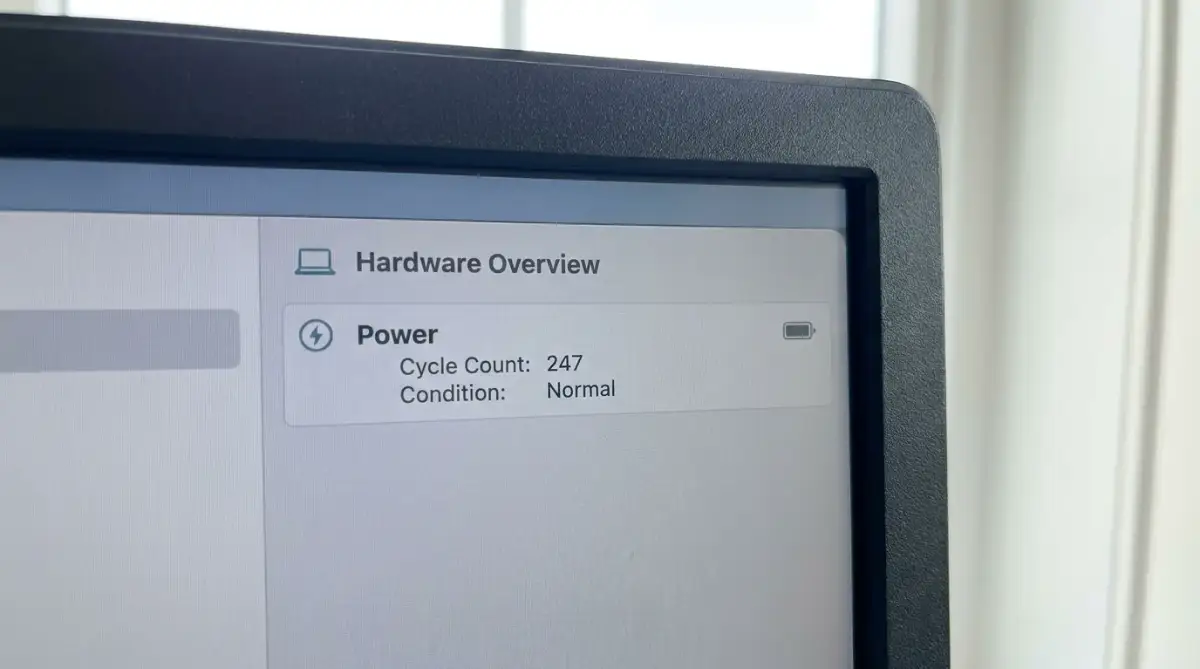
- To find the cycle count, hold the Option key, open the Apple menu, and select System Information.
- In the sidebar, select Hardware, then Power. Look in the Battery Information section for Cycle Count.
Menu names vary by macOS version. If Battery Health is not shown, use System Information and Apple's instructions for your model. Maximum cycle counts also vary by Mac model.
If macOS displays Service Recommended, review Apple's service guidance and arrange an assessment, especially if runtime is poor.
5. Interpret the Results Without Misreading Them
Combine report numbers with everyday experience. An 85% estimate may be adequate for one person but inconvenient for someone who needs long unplugged sessions.
Use these practical checks:
- Compare capacity: Calculate full-charge capacity as a percentage of design capacity. Record the result and check it again later rather than worrying about a tiny day-to-day difference.
- Compare actual runtime: Note how long the laptop lasts during your normal work. Screen brightness, video calls, games, background applications, Wi-Fi, and connected devices can change runtime significantly.
- Consider the model's cycle limit: Use the laptop maker's specification for your exact model. Cycle count is one indicator, not a stand-alone verdict.
Consider a battery assessment when capacity has fallen substantially, runtime no longer meets your needs, or the computer reports a service warning. Around 80% can be a useful reference point, but it is not a universal replacement or warranty threshold.
6. Why a Healthy Report May Still Show Fast Battery Drain
If the report looks reasonable but charge drops quickly, check system activity, heat, display settings, wireless connections, and sleep behaviour.
The laptop gets unusually hot: Check for blocked vents, soft surfaces, and dust-clogged fans. Follow the manufacturer's cleaning instructions.
The fan runs loudly when you are doing very little: Open Task Manager on Windows or Activity Monitor on macOS and look for an application using unusually high CPU resources. Update or close the app if appropriate. You can also read our related guide:clean dusty PC fans without static damage.
The screen is very bright: Reduce brightness to a comfortable level and shorten the screen timeout. For more ways to reduce unnecessary power use, see laptop battery lifespan habits.
The laptop drains while asleep: Review sleep settings, disconnect unnecessary USB accessories, and install recommended driver updates.

7. Avoid Mistakes That Can Lead to a Wrong Diagnosis
- Do not treat cycle count as the whole story. A battery can age through time and heat even if it has relatively few cycles.
- Do not repeatedly drain the battery to zero to “calibrate” it. Deep discharges are not a routine battery-health treatment and can add unnecessary wear.
- Do not assume plugging in automatically ruins the battery. Use the manufacturer's smart-charging or charge-limit feature if available.
- Do not ignore swelling. If the case or trackpad is lifting, the battery looks swollen, or you notice an unusual chemical smell, stop using and charging the laptop. Do not press, puncture, or attempt to remove a swollen battery yourself. Arrange professional service.
For everyday care, avoid excessive heat and frequent deep discharges. Follow the charging recommendations for your laptop model. Apple explains its approach to battery health management on Mac laptops, while Microsoft provides Windows battery-care guidance.
8. Frequently Asked Questions
When should I replace my laptop battery?
Consider replacement when the manufacturer reports a service condition, the battery no longer provides enough runtime, it causes unexpected shutdowns, or its capacity has declined substantially. A figure near 80% can be a useful prompt to assess the battery, but check your model's guidance and warranty rather than treating it as a universal rule.
Does leaving my laptop plugged in all day damage the battery?
Not automatically. Charging behaviour varies by model, and many newer laptops include smart charging or charge-limit features. Heat and keeping a battery at a high charge level for long periods can contribute to aging, so enable the manufacturer's battery-care feature if available. Do not follow a universal monthly drain-to-zero routine.
Why does Windows show no battery information?
A desktop computer has no built-in battery to report. On a laptop, missing information can occur if Windows cannot detect the battery, the battery controller or driver has a problem, or the battery is not communicating correctly. Restart the computer, install updates from the manufacturer, and contact support if the battery remains undetected.
[IMAGE 4]
Final Battery Health Checklist
- Generate a Windows battery report or check Battery Health on your Mac.
- Record design capacity, full-charge capacity, and cycle count where available.
- Compare the figures with the specifications for your exact laptop model.
- Check actual runtime and look for service warnings or unexpected shutdowns.
- Use the manufacturer's charging and battery-care settings where available.
- Arrange professional service if the battery is swollen, damaged, or showing a service warning.
Your battery percentage shows estimated remaining charge, not overall condition. Use the diagnostic report, real-world runtime, and manufacturer guidance together before deciding whether replacement is necessary.
Disclaimer: This article provides general educational information. Menu names and diagnostic features vary by operating system version and laptop model. For a damaged or swollen battery, follow the manufacturer's safety instructions and seek qualified service.
Open your laptop's battery settings or generate its report today. Record the capacity and cycle count, then compare them with your laptop's model-specific guidance. If you have a question about a particular result, share the model and the figures shown in your report.