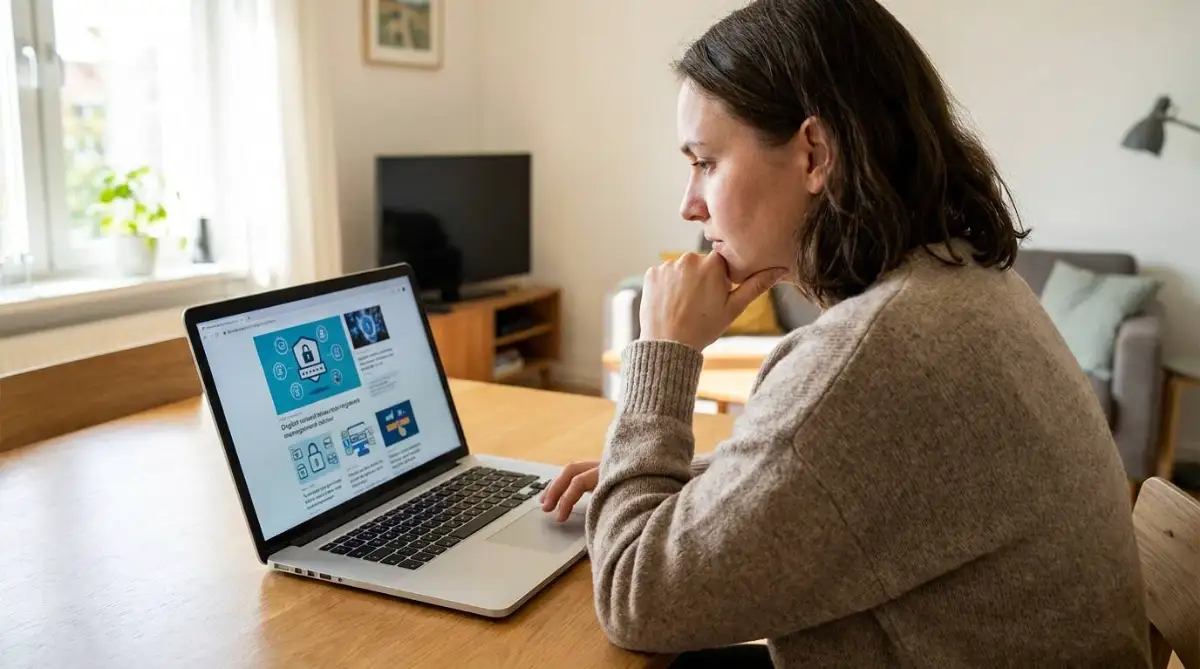
When I first realized how dangerous password reuse was, I learned that taking control of your online security requires a simple digital vault. To figure out how to stop reusing passwords with a password manager, you need a digital vault to store your logins and one strong master password to unlock it. Instead of memorizing 20 different passwords, you only remember one. The software generates and autofills long, unique codes for every website you visit. You can start by using the built-in manager on your phone or web browser, or download a dedicated app. Begin by moving your email and bank accounts first, then slowly update the rest as you log in normally.
1. Why Did My Favorite Password Stop Working?
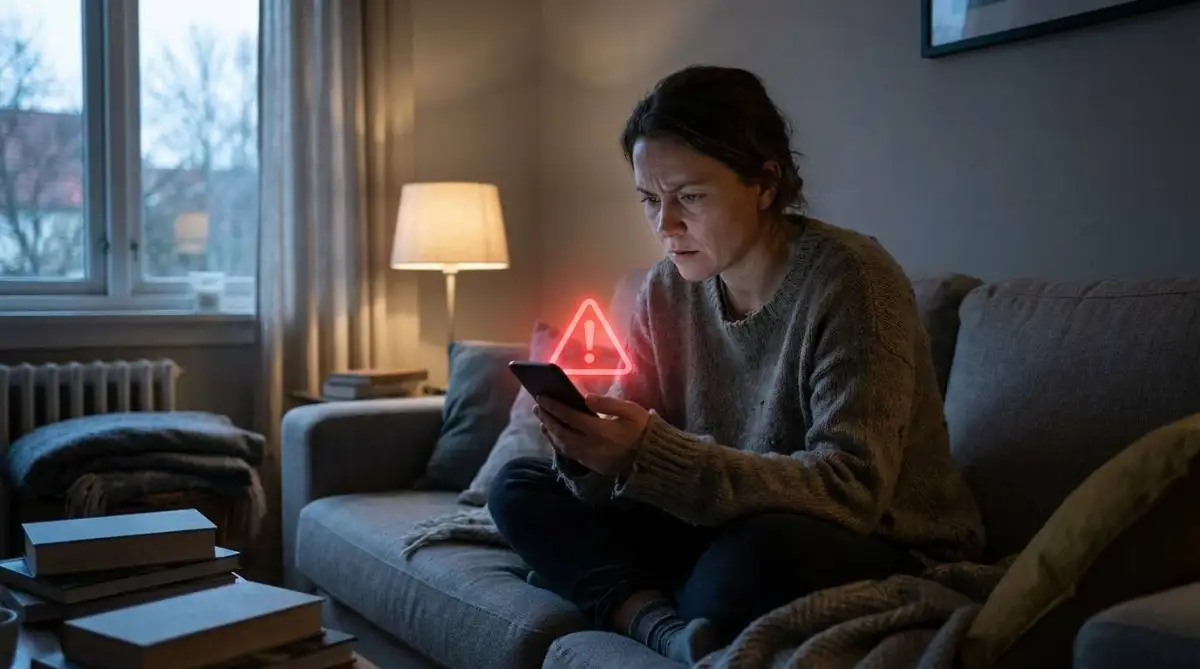
I used the exact same password for almost everything. It unlocked my email, my favorite online stores, and my streaming services. It was easy to remember. Last month, a small clothing website I bought a shirt from suffered a data breach. Hackers stole their customer list, including my email and that single password. Within 2 days, someone used that exact combination to log into my main email account and lock me out. I panicked. I had to freeze my bank cards and spend hours recovering my accounts. That weekend, I finally set up a password manager. I have not reused a password since, and I feel much more in control of my accounts.
This is called credential stuffing: criminals test stolen username-and-password pairs on other services. Unique passwords break that chain, so a shopping-site breach should not unlock your email or bank account.
2. How Does a Single Master Password Keep You Safer?
People sometimes think writing passwords in a notebook is safer than trusting software. However, notebooks can be lost, copied, or seen by someone else, and typing passwords manually makes it easier to reuse simple patterns. A password manager stores login details in an encrypted digital vault. You unlock it with a master password, while the manager generates and remembers a different password for each account.
When you visit a website, a well-designed manager can match saved credentials to the site address and offer to fill them in. This can help you notice a suspicious lookalike domain, but never treat autofill as a complete phishing detector. Check the website address yourself before entering sensitive information. If a hacker steals a password from one website, they cannot use that same password elsewhere when every account has a unique one. This is one of the practical security habits that can help reduce credit card fraud.
A password manager does not make an account invulnerable. Protect the vault with a strong master passphrase, MFA, and updated devices. NIST also explains how password managers help people use unique passwords in its guidance on creating a good password.
General security information, not professional cybersecurity advice.
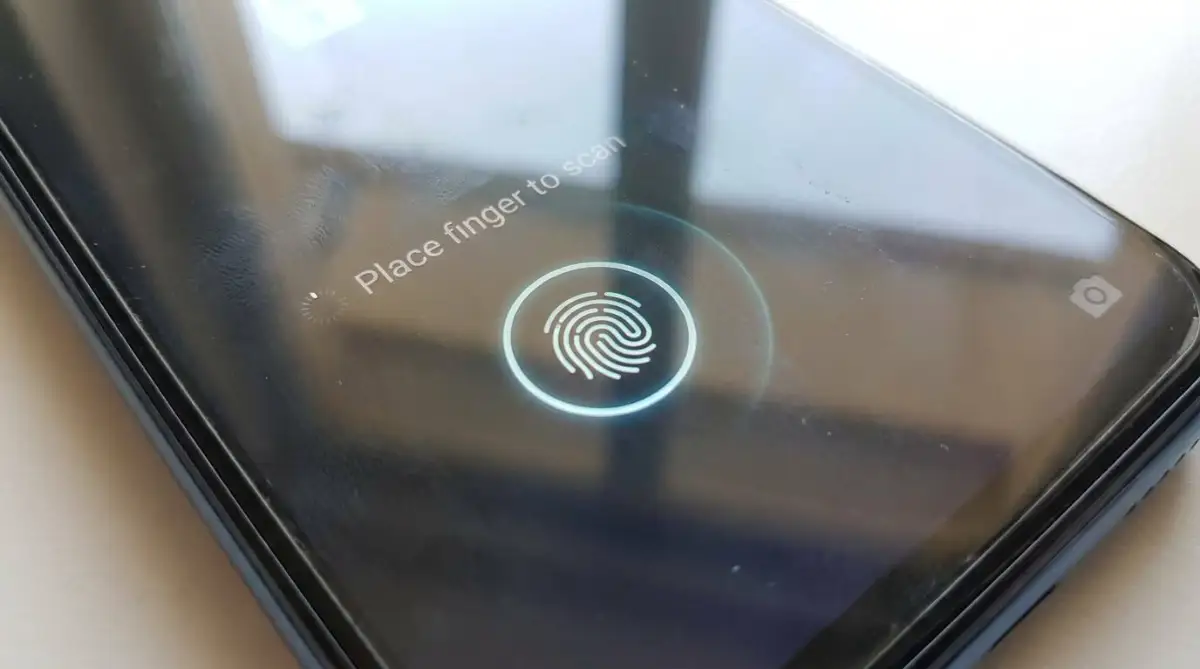
3. How Do You Set Up Your New Digital Vault?
Before you start, have your phone and computer nearby, access to your primary email, and a secure place for recovery instructions. Compare the manager's security features and recovery process.
Follow these steps to secure your logins:
- Choose your vault type: Select a built-in browser or device manager, or a dedicated password-manager app.
- Install the official application: Download it from the provider's official website or trusted app store.
- Create your account: Use an email address you can reliably access and protect that email account first.
- Set a strong master password: Use a long, unique passphrase made from unrelated words. Do not reuse a password from another account.
- Enable MFA: Turn on multifactor authentication for the vault if it is available. An authenticator app or security key can add protection beyond the master password.
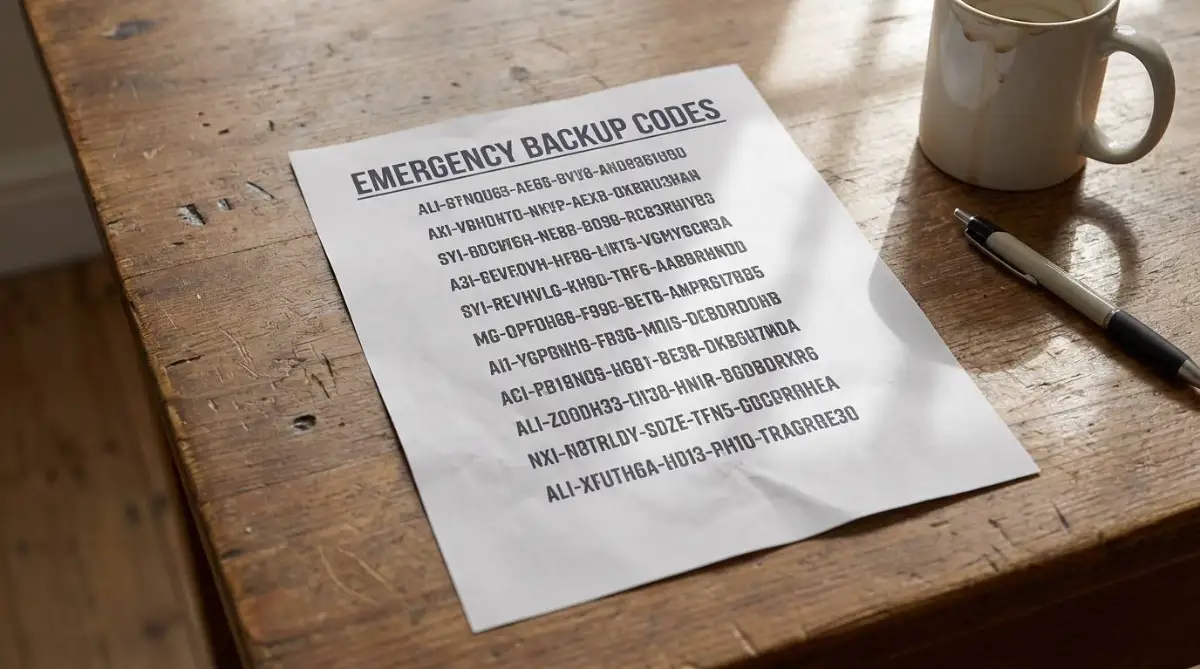
- Save recovery information: Follow the provider's instructions for emergency access or recovery codes. Store them somewhere secure and separate from your everyday device.
- Add your first login: Save your primary email account, then replace its old password with a newly generated unique one.
- Test access: Sign out and sign back in carefully. Confirm that you can unlock the vault on your other trusted device before relying on it.
Pro Tip: Do not store your master password only inside the vault it unlocks. Keep a secure recovery plan in case you forget it or lose access to your device.
For practical password guidance, see the CISA Secure Our World password tip sheet, which recommends long, random, unique passwords and using a password manager.
4. What Changes If You Use a Browser Tool Versus a Dedicated App?
Built-in browser and device tools are convenient and often free. Dedicated managers may support more browsers, devices, families, or teams. Features and pricing vary, so check the current plan.
| Vault type | Potential advantage | What to check |
|---|---|---|
| Browser or device tool | Easy to start and integrated with your device | Compatibility when you switch browsers or platforms |
| Dedicated app | May offer cross-platform syncing and extra sharing or security features | Price, recovery options, export tools, and provider security practices |
A built-in manager may be enough for one device ecosystem; compare dedicated options if you switch platforms. Keep devices and apps updated. critical security settings every smart home owner should check.
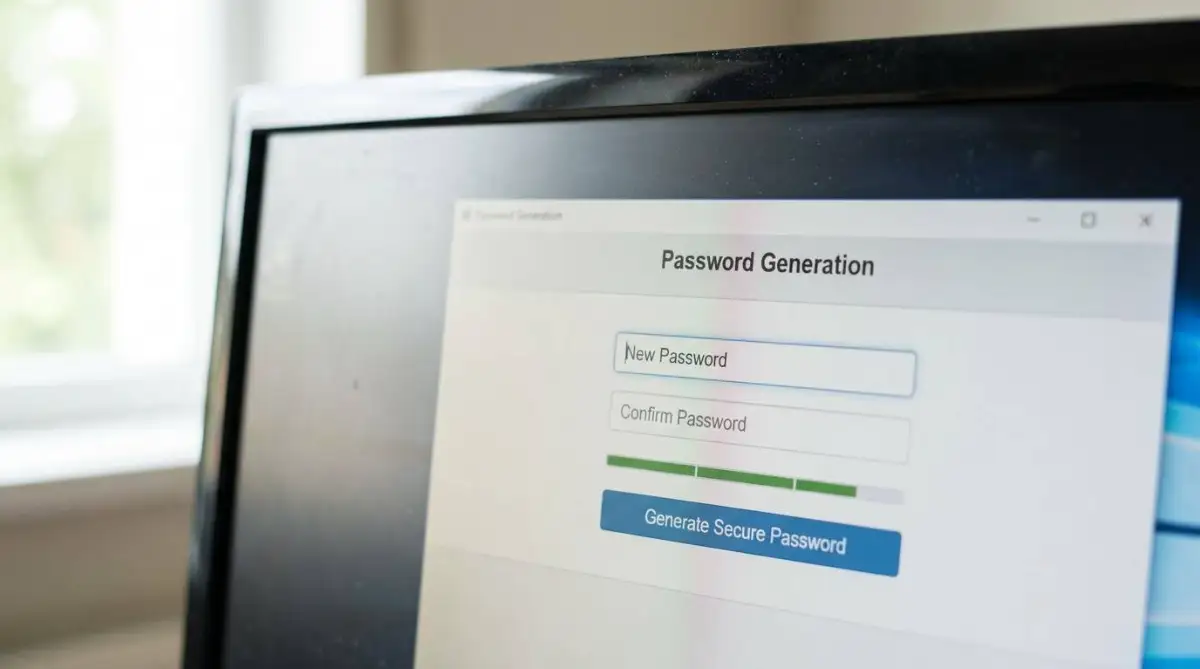
5. What If the Software Fails to Autofill Your Login?
Sometimes you visit a website and the manager does not offer to fill in your password. First, check the address in the browser bar and make sure you reached the genuine website using a bookmark or by typing its known address. Do not follow a login link from an unexpected email or message.
If the address is correct, the page design may prevent the manager from recognizing the login fields. Open the manager yourself, confirm the saved website address, and follow its support instructions if autofill still fails.
6. Avoid Mistakes That Lock You Out
- Forgetting your master password: Some services cannot recover a forgotten master password because they are designed not to know it. Understand the recovery rules before you depend on the vault.
- Ignoring recovery information: Store recovery codes or emergency instructions securely, separately from your main device, and make sure trusted instructions remain accessible.
- Changing every password at once: Work in stages. Start with email, banking, payment services, and other accounts that can reset or expose many of your other accounts.
- Using a weak master password: Choose a long, unique passphrase that is difficult to guess and that you do not use anywhere else.
- Leaving old passwords active: Once you replace a reused password, update every account where the old one appeared. A password manager cannot change passwords on every site automatically.
7. A Practical Order for Replacing Reused Passwords
Work through accounts in priority order rather than trying to finish everything in one sitting.
- Secure your main email: Change its password first and enable MFA. Email is often used to reset other accounts.
- Protect financial accounts: Update bank, payment, and shopping accounts that store payment details. Review recent activity after making changes.
- Update important accounts: Change passwords for cloud storage, social networks, work tools, and mobile-provider accounts.
- Finish the long tail: Update forums, newsletters, entertainment services, and older accounts. Close accounts you no longer need when the service allows it.
After migration, review any security report for reused or exposed passwords, change affected logins, and enable MFA on important accounts.
8. Answer Common Password Manager Questions
Are password managers actually safe to use?
A reputable manager can improve security, but no tool is risk-free. Use a strong master passphrase and MFA. For more context,how to safely recycle old electronics at home.
How do I move my old saved passwords?
Many managers can import logins from a browser or another manager. Export files may be readable, so import them through the official app, then delete the unencrypted file and empty the recycle bin. Never email the export.
How does this protect against automated hacking?
Automated tools test stolen logins on other websites. Unique passwords and MFA help defend against this credential-stuffing risk. See our article about AI and online threat prevention.
What if I lose my phone or computer?
Recovery depends on the manager and its sync settings. Install the official app on a replacement device and follow its recovery process; do not assume every vault is automatically recoverable from the cloud.
Should I change every password regularly?
Do not change strong, unique passwords on an arbitrary schedule just for the sake of changing them. Change a password promptly if a service reports a breach, you suspect someone accessed the account, you shared it accidentally, or you discover it was reused. If it was reused, change it everywhere it appeared.
Disclaimer: This article provides general educational information about online security and account management.
Take action right now: choose a reputable password manager, secure your primary email account with a new generated password, and enable MFA. Then update your other reused passwords in priority order. This small, steady process can make it much harder for one exposed password to put several accounts at risk.