Catchy Headline Options (choose one for A/B testing 鈥� do not mix with Blog Post Title above):
- Option 1: The Silent PC Blueprint: How to Remove Years of Dust Without Frying Your Motherboard
- Option 2: Stop Vacuuming Your Computer: The Only Safe Way to Deep Clean Your Noisy PC Fans
- Option 3: Rescue Your Overheating PC: A Beginner's Guide to Cleaning Fans Without Static Shocks

Section 1: The Pain, Struggle & Reality
You sit down ready to start a work project or a game session, hit the power button, and within seconds the room fills with a whine that sounds more like a jet engine than a computer. You hold a hand near the exhaust vent and feel real heat radiating off it. A few minutes in, the screen stutters, then the whole thing shuts down without warning.
Searching for a fix online usually makes things worse before they get better, since a lot of the advice floating around actively damages hardware:
- Forums regularly suggest sucking the dust out with a household vacuum.
- Dry paper towels or feather dusters get used to wipe down circuit boards that really shouldn't be touched that way.
- Beginners let their fans spin freely while spraying compressed air, mostly because it looks satisfying.
- Static electricity rarely gets mentioned, even though a spark you can't see or feel can kill an expensive graphics card instantly.
- Glass cleaner ends up sprayed inside cases, which shorts something almost immediately.
A loud, overheating computer wears on you in ways beyond the noise itself. Focus gets harder with a fan screaming in the background.
- There's a low-grade dread that the graphics card or processor is one bad session away from dying.
- Opening the case yourself feels intimidating, like something only a technician should attempt.
- Random crashes and blue screens eat into hours you didn't plan on losing.
- A loud fan picked up by your microphone during a call is its own small embarrassment.
Think of your computer as a car engine 鈥� it needs a steady flow of cool air to avoid overheating under load. The fans are its lungs, drawing in cool air and pushing out hot air. Meanwhile, your room is constantly generating dust 鈥� pet hair, skin cells, ordinary household dirt 鈥� and the fans pull all of it straight into the case.
That dust builds into something like a thick blanket wrapped around the delicate parts inside. The fans try to compensate by spinning harder, which is where the noise comes from 鈥� a losing battle against a growing layer of insulation trapping heat exactly where it shouldn't be.
Opening a computer case looks intimidating from the outside, like something that requires an engineering background. It really doesn't. What it requires is understanding how static electricity behaves and following a short list of grounded safety habits. Here's the full, low-risk process.

Section 2: Step-by-Step Educational Guide (Part 1)
Step 1: The Total Power Drain Protocol
The biggest mistake happens before the case ever gets opened. Clicking "Shut Down" in Windows and immediately grabbing a screwdriver is a common habit, and a risky one 鈥� the screen going dark doesn't mean the machine has stopped drawing electrical charge.
The power supply holds a real charge for a while after shutdown, waiting to feed the motherboard. Drop a screw or brush the wrong pin while that charge is still present, and a short circuit is the likely result.
Shut the system down normally, then unplug the main power cable from the wall 鈥� not just the surge protector switch, the actual cable. Disconnect the monitor, keyboard, and any USB devices as well, so the machine is completely isolated.
One extra step technicians rely on: press and hold the power button on the front of the case for about ten seconds, even with the wall cable disconnected. Internal capacitors often still hold a small residual charge, and this drains it completely. Once that's done, the machine is genuinely safe to open.
Step 2: Master the Science of Static Defense
With the power drained, the next concern is invisible 鈥� static electricity, generated constantly just by moving around a room. Dragging socked feet across carpet builds a real charge on the body, and the small zap felt when touching a metal doorknob is roughly three thousand volts discharging.
People shrug that off easily. Computer chips don't 鈥� a spark of just thirty volts, far too small to even feel, is enough to punch a hole through a processor.
Work on a hard surface 鈥� a wooden table or kitchen counter, never carpet. If the whole house is carpeted, going barefoot generates noticeably less static than wool socks do.
Grounding the body matters too. An anti-static wrist strap connected to the case does this properly, but without one, pressing a bare hand against an unpainted metal part of the case frame for a few seconds works as a manual alternative. Touching that same spot every few minutes while working keeps the charge equalized throughout the process.
Step 3: Use Compressed Air Safely and Stop the Windmill Effect
With grounding handled, it's time to deal with the actual dust 鈥� and a household vacuum should never come near an open case. Vacuum nozzles generate significant static as air rushes through the plastic housing, and brushing that against a motherboard is a fast way to fry it.
A can of compressed air made for electronics is the right tool here. Keep it upright at all times 鈥� tilting or inverting it sprays freezing liquid refrigerant instead of gas, and that sudden temperature shock can crack a silicon chip outright.
The most commonly skipped step: keeping the fan blades from spinning while spraying. A spinning fan under pressurized air looks harmless, but a fan is mechanically identical to a small generator 鈥� force it to spin manually, and it sends a reverse electrical current back through the motherboard's fan header, which can damage it.
A cotton swab or the eraser end of a pencil, wedged gently between the blades, stops this completely. With the blades locked in place, hold the can about six inches away and spray in short bursts to knock the dust loose without any risk of backflow.
Section 3: Advanced Practical Tips & Pro-level Secrets
Now that you understand the basic physical rules of static defense and proper air flow, we need to focus on long-term hardware health. Blowing the loose dust away is a great first step, but it is not enough to keep your computer running perfectly silently.
Professional repair technicians use a few advanced secrets to ensure the dust does not return quickly. You do not need a degree in computer engineering to use these professional methods.
Step 4: Use High-Purity Isopropyl Alcohol for Sticky Grime
Compressed air easily blows away dry, loose dust from your components. However, the air inside your home naturally contains humidity and microscopic cooking oils. When this humidity mixes with normal dust, it creates a thick, sticky paste that clings tightly to your plastic fan blades.
Blowing high-pressure air at this sticky grime will accomplish absolutely nothing. The dirt will remain stuck to the plastic. To remove it safely, you need to use 99% isopropyl alcohol.
You must use this specific high percentage because it contains almost zero water. Water destroys sensitive electronics instantly. High-purity alcohol evaporates into the air within seconds, making it entirely safe to use around your expensive graphics card and fragile motherboard.
The cotton swab wiping method. Take a clean cotton swab and dip it lightly into the alcohol bottle. Gently press the swab against a paper towel to remove any dripping excess liquid.
Carefully wipe the leading edges of your plastic fan blades. You will see thick, dark grey dirt lifting off the plastic immediately. Keep swapping out for a fresh cotton swab until the fan blades look perfectly clean. A smooth, clean fan blade cuts through the air quietly, instantly reducing the annoying loud noise in your room.
Step 5: Reroute Your Internal Cables to Free the Airflow
Many people spend hours carefully cleaning their fans, but their computer still runs incredibly hot. This usually happens because the internal cables are physically blocking the fresh air. If the inside of your computer looks like a messy bowl of spaghetti, you have a massive airflow problem.
Thick power cables act like a giant net inside your case. They trap floating dust and physically block the cool air from reaching your overheating processor.
Think of a fast-moving river. If you throw a dozen large rocks into the middle of the river, the water slows down and gets stuck. Your computer fans push air like a river, and messy cables act exactly like those rocks.
Create a clear internal wind tunnel. Buy a cheap pack of plastic zip ties from your local hardware store. Group your loose cables together tightly.
Push these bundled cables behind the metal motherboard tray. Keep the main central area of your computer case completely empty. When you clear this space, the front fans can push a massive wall of cool air directly onto your hot components without any physical interruption.
Step 6: Maintain a Zero-Dust Environment for the Long Term
Cleaning your computer is a deeply satisfying process, but you certainly do not want to do it every single week. You need a smart strategy to keep the dust away permanently. The easiest way to protect your hardware is by changing exactly where the computer sits in your room.
The absolute worst place to put a computer is directly on a carpeted floor. Your floor is where all the dead skin, pet hair, and heavy dirt naturally settle. When you place a high-powered fan on the floor, it acts like a vacuum cleaner, sucking up all that heavy dirt continuously.
Get your machine off the floor today. Move your heavy desktop tower onto a solid wooden desk or a dedicated side table. Raising the machine just two feet off the floor reduces internal dust buildup by a massive amount.
Next, you need to manage your external intake filters. Most modern computer cases feature removable mesh filters on the front and bottom panels.
These mesh filters are designed to catch large dust bunnies before they enter the system. Check these external filters on the first Sunday of every month. Pop the plastic filters off and wash them vigorously in your kitchen sink with warm soap.
Make absolutely sure the mesh is completely dry before clicking it back onto your computer. By simply washing the outside filters monthly, you easily prevent the inside of your machine from ever getting dirty again.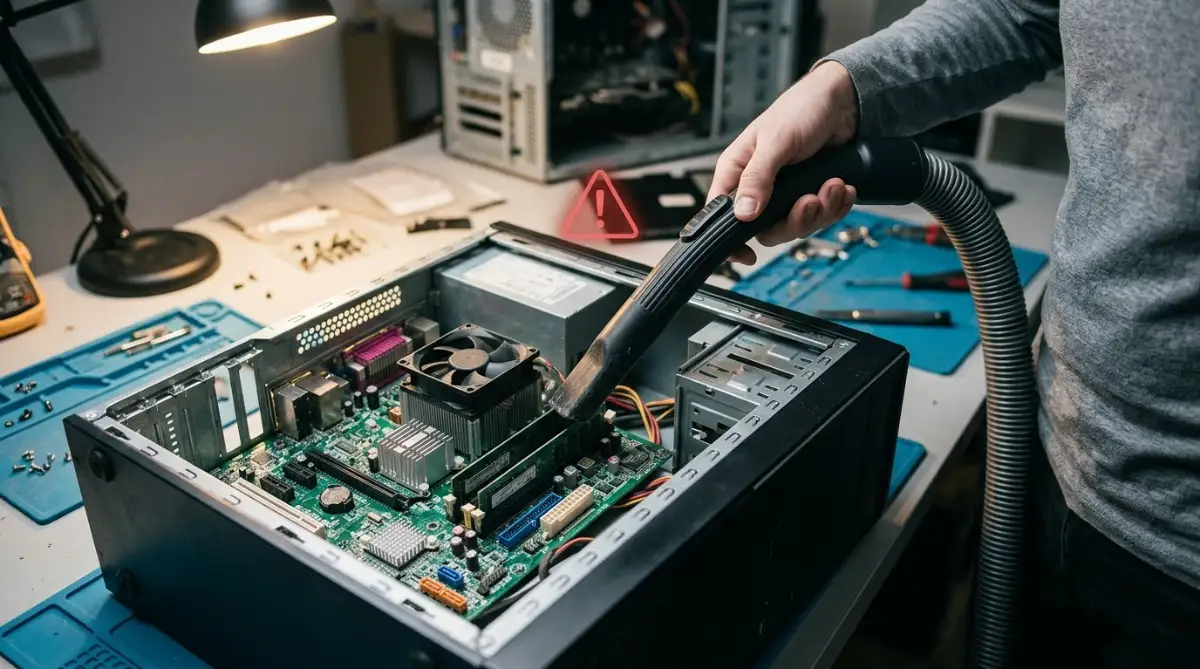
Section 4: Common Mistakes to Avoid (The Pitfalls)
When beginners open a computer case for the first time, they often make terrible, highly expensive mistakes. They use the wrong household tools because they do not understand how fragile the internal microchips really are. If you want to protect your expensive hardware investment, you must completely avoid these five dangerous errors.
1. Using a Household Vacuum Cleaner Inside the Case
This is the absolute most common and destructive mistake people make. Because a vacuum cleaner easily sucks dirt from a living room rug, people naturally assume it is safe for electronics. This assumption leads directly to broken motherboards.
The plastic hose of a vacuum cleaner creates a massive static electricity storm as dry air rushes through it. If you bring a highly charged plastic vacuum nozzle near your memory sticks or processor, a sudden invisible spark will jump across the gap.
This tiny spark will instantly fry the delicate silicon chips. Always rely on compressed air to push the dust out gently, rather than using a powerful vacuum to suck the dust in.
2. Forgetting to Drain the Leftover System Power
We discussed this in the first part of our guide, but it bears repeating because people constantly ignore it. Clicking the shutdown button on your screen does not remove the electricity from your machine.
Your heavy power supply unit holds a deep electrical charge for several minutes after being unplugged. If you accidentally drop a metal screwdriver onto the motherboard while this charge is present, you will cause an immediate electrical short.
Always unplug the main power cable from the wall outlet. Then, press and hold your computer's physical power button for exactly ten seconds. This action safely empties all the dangerous leftover electricity before your hands get near the sensitive parts.
3. Spraying Compressed Air Upside Down
Canned air is a highly effective tool, but it contains specific chemicals that behave badly when handled wrong. If you tilt the can aggressively or turn it completely upside down while spraying, normal air does not come out.
Instead, a freezing cold, white liquid refrigerant will aggressively shoot out of the nozzle. This liquid is incredibly dangerous to warm electronic components.
If this freezing liquid hits a warm graphics card, the extreme, sudden temperature change can literally crack the silicon chip in half. You must always keep the compressed air can perfectly upright. Move your computer case around to reach difficult angles, rather than tilting the chemical can.
4. Touching Exposed Circuit Boards with Bare Hands
Your hands might look perfectly clean to you, but they are actually covered in natural human oils and invisible sweat. Our skin constantly produces a thin layer of natural grease.
If you grab a graphics card by the green circuit board, you leave greasy fingerprints directly on the exposed metal pins. Over time, these acidic human oils will silently corrode the fragile metal traces.
This slow, invisible corrosion eventually leads to mysterious system crashes and sudden blank screens. You should only ever hold computer parts by their thick plastic shrouds or their outer metal brackets. Keep your bare fingers far away from the tiny silver solder points.
5. Using Regular Tap Water on a Damp Cloth
Sometimes people realize that compressed air is not removing the sticky dust from their fans. Because they do not have high-purity alcohol at home, they grab a paper towel and soak it in regular kitchen tap water.
This is a terrible decision that will likely ruin the machine permanently. Tap water is full of invisible, highly conductive minerals like calcium and iron.
Even if you wait three days for the water to dry completely, those conductive minerals stay behind on the motherboard. The very next time you turn the computer on, electricity will travel across those invisible minerals, causing a fatal short circuit. Only ever use 99% isopropyl alcohol to wipe down computer internals.
Section 5: Final Conclusion & Actionable Takeaways
You now hold the exact, step-by-step blueprint to clean your computer safely and effectively. We have completely removed the fear of opening your heavy desktop case. You understand how to defeat static electricity and how to stop your fans from spinning dangerously out of control.
You do not need to pay a professional repair shop fifty dollars to blow the dust out of your machine. You possess the exact knowledge required to do it yourself securely. Your computer is a powerful tool, and treating it with care ensures it will serve you smoothly and quietly for years to come.
Grab a can of compressed air from your local store today. Clear off your wooden dining table, unplug your heavy tower, and hold that power button to drain the charge. Take thirty minutes this weekend to care for your machine. When you finally press the power button and hear absolute silence, you will feel an immense sense of personal pride and digital control!