Solving the smart home disconnection issue requires a systematic troubleshooting checklist to identify network miscommunications. The most common fix is forcing your smart devices onto a dedicated 2.4 GHz Wi-Fi band, as most IoT antennas cannot process 5 GHz signals. Additionally, you must eliminate physical signal roadblocks, assign static IP addresses to prevent network conflicts, and replace cheap provider routers with a robust mesh system. By following this comprehensive troubleshooting checklist, you can permanently stabilize your smart home and eliminate frustrating "Device Offline" errors.
The Frustration of a "Device Offline" Error
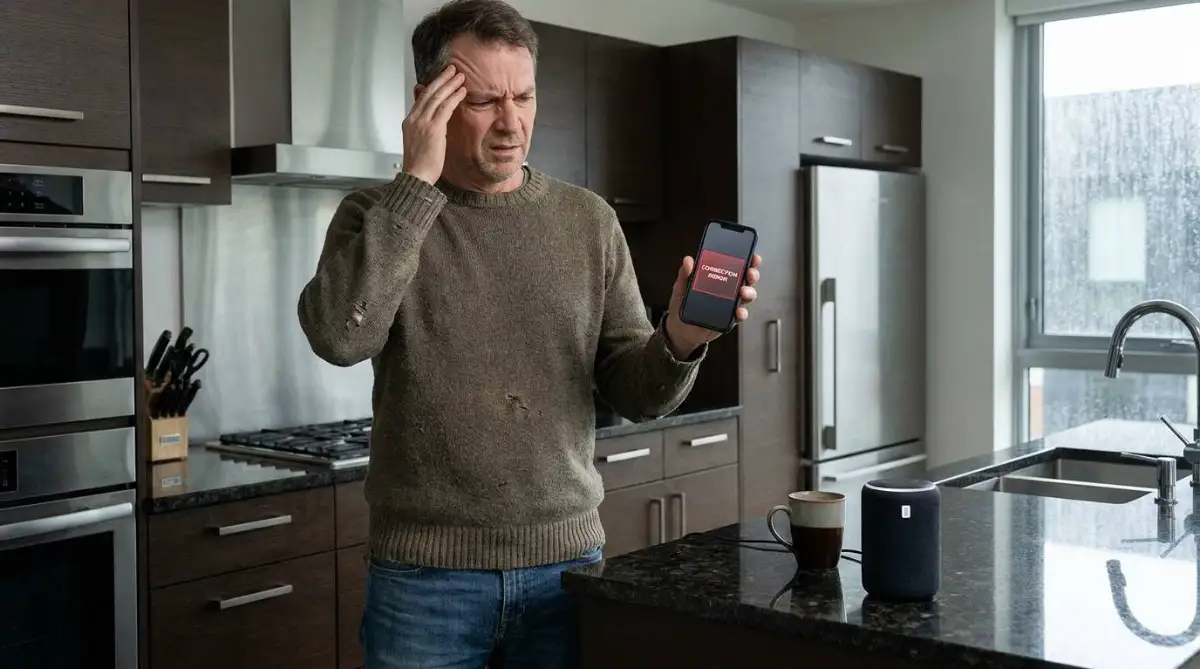
I still remember walking into my dark kitchen after a long, exhausting day at the office. I threw my heavy bags on the counter and confidently commanded my expensive smart speaker to turn on the lights.
Instead of a warmly lit room, I was met with total silence, followed by a slow, robotic voice announcing, "I'm sorry, I am having trouble connecting to the internet." I stood there in the dark, furiously opening my phone app, only to see the dreaded gray "Device Offline" warning flashing across my screen.
I felt incredibly foolish. I had spent hundreds of dollars and an entire weekend installing smart bulbs, cameras, and thermostats, expecting my home to feel like a futuristic paradise. Instead, I spent the next forty-five minutes crawling on the floor, repeatedly plugging and unplugging a tiny plastic box, desperately praying for the green light to return.
Millions of hopeful homeowners experience this exact infuriating cycle. You buy a highly rated smart gadget, follow the setup instructions, and it works perfectly for three days. Then, completely randomly, the camera stops recording, the thermostat ignores your schedule, and the front door lock refuses to open.
Most people assume their gadgets are broken. They box up the expensive equipment, mail it back, and declare smart homes a scam. However, the devices are rarely the problem. The real issue is almost always a hidden miscommunication between the device and your Wi-Fi network.
By running through a logical sequence of checks, you can identify exactly where that communication breaks down. Let us walk through the troubleshooting checklist professionals use to force stubborn devices back online permanently.
The Systematic Path to Network Stability
Eliminating the 5 GHz Confusion Trap
When a smart device refuses to connect during setup, the problem usually starts at your router. Modern routers are "dual-band," simultaneously broadcasting a 2.4 GHz network and a 5 GHz network.
We love the 5 GHz network for laptops because it provides incredibly fast speeds. Consequently, most people naturally connect their new smart coffee maker directly to that blazing-fast 5 GHz name.
This is the number one cause of connection failure. To keep costs low and ensure signals pass through walls, ninety-five percent of smart home devices use cheap Wi-Fi antennas that only process the slower 2.4 GHz frequency.
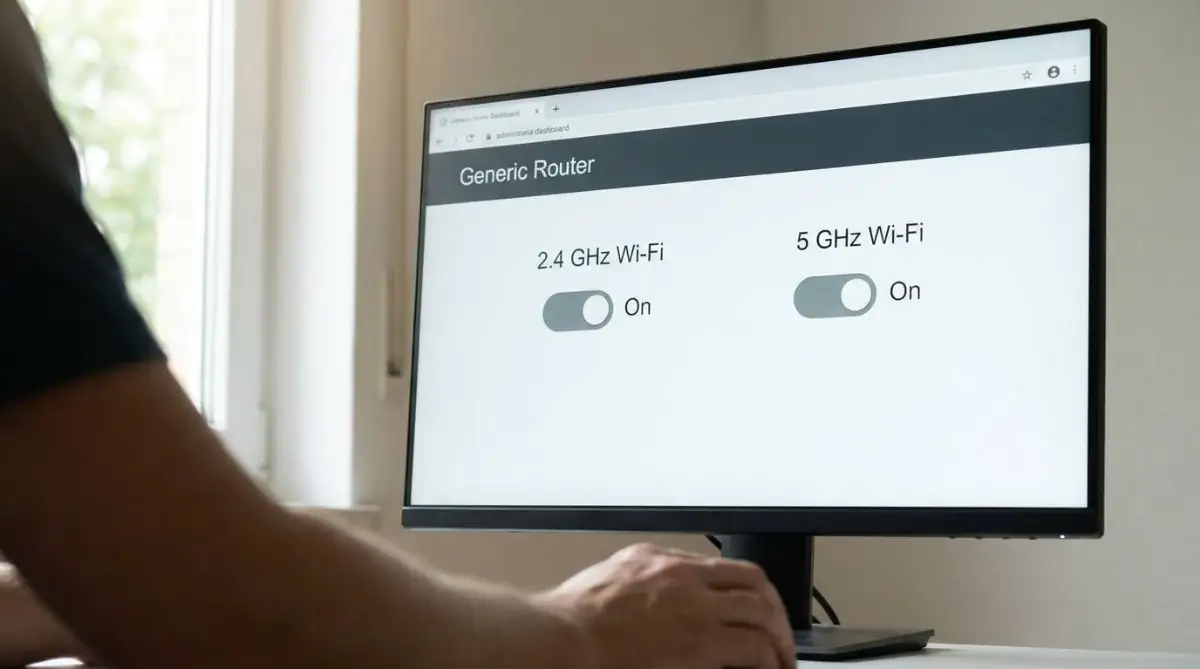
To fix this, log into your router's dashboard and separate your network names. Name your fast network "Home_5" and your slow network "Home_2.4." Force your smartphone to connect to the 2.4 GHz network first, then run the setup process for your smart gadget again.
My Personal Realization: I spent three hours trying to connect an expensive smart thermostat, assuming it was broken. The exact minute I switched my phone from the 5 GHz band to the 2.4 GHz band, the thermostat connected in seconds and hasn't dropped offline since.
2.4 GHz vs. 5 GHz Wi-Fi Comparison
| Feature | 2.4 GHz Band | 5 GHz Band |
|---|---|---|
| Speed | Slower (up to 150-300 Mbps) | Much Faster (up to 1 Gbps+) |
| Range & Wall Penetration | Excellent (Easily passes through walls) | Poor (Blocked by walls and furniture) |
| Best Used For | Smart bulbs, thermostats, security cameras | Laptops, gaming consoles, 4K streaming |
| Interference Risk | High (Microwaves, Bluetooth, neighbors) | Low (Less crowded frequency) |
Clearing Physical Signal Roadblocks
Once on the correct frequency, ensure the radio waves can actually reach the device. Many people place their router inside a thick wooden cabinet, then wonder why the front porch camera constantly drops offline.
Radio waves lose power passing through solid objects. According to the Federal Communications Commission (.gov) consumer guide, removing physical barriers is the most effective way to eliminate wireless dead zones.
Physically move your router out of the cabinet and place it high on an open shelf. Elevating the router allows the signal to travel over heavy furniture. If a specific room still suffers from disconnections, learn how to identify physical interference by reading our guide on how to increase wifi speed without new router hardware.
Resolving IP Address Conflicts on Crowded Networks
As your smart home grows, a frustrating problem occurs: turning on your smart TV might knock your kitchen lights offline.
This is caused by an IP address conflict. Every time a device connects, the router hands it a temporary digital nametag (IP address). Older routers occasionally get confused and hand the exact same nametag to two different devices. When the router sends a command to the lights, the TV intercepts it, causing the router to panic and drop both connections.
Solve this by logging into your router's dashboard and finding "DHCP Reservation" or "Static IP Allocation." This setting assigns a permanent, unchanging IP address to your most important smart devices, preventing internal confusion.
Executing a Proper Hard Reset Sequence
If a device stubbornly refuses to reconnect, rapidly flipping the wall switch rarely works. A quick power cycle doesn't give internal memory chips time to clear corrupted data.
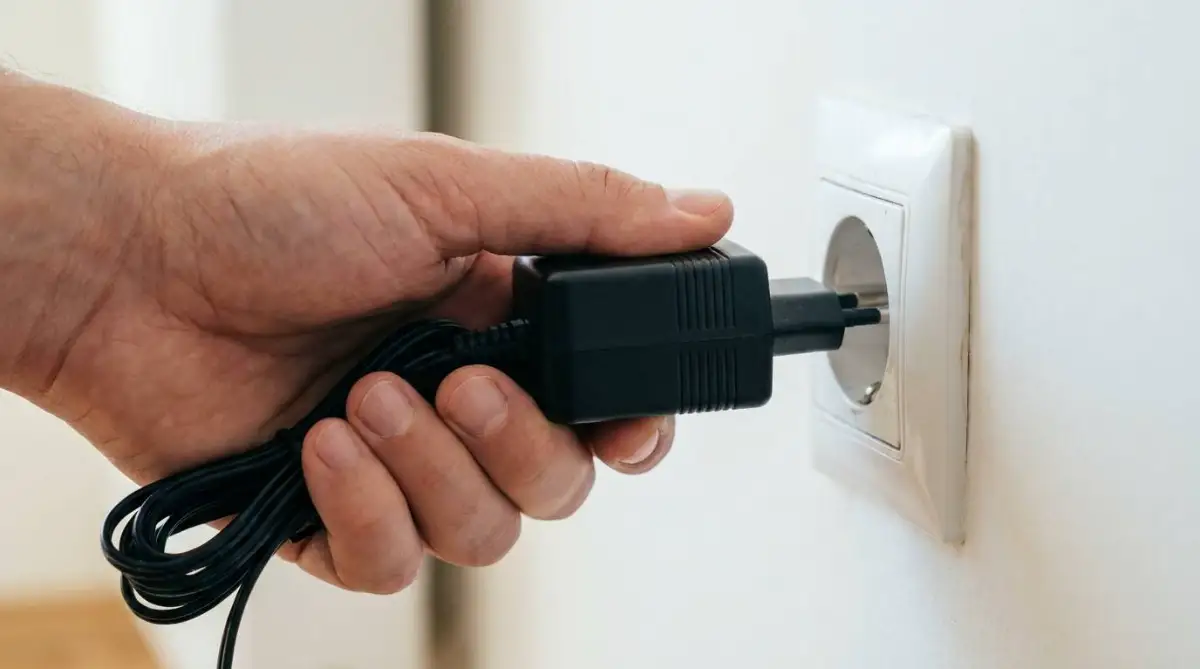
Perform a true hard power cycle by unplugging the smart gadget completely for a full sixty seconds. While unplugged, reboot your main internet router as well.
Properly managing power flow is an essential tech skill. Ensure your gadgets remain safe during resets by understanding how to protect electronic devices from sudden power surges, guaranteeing hardware survives daily use.
Pro-Level Network Maintenance Strategies
Deploying an Intelligent Mesh Network
If you live in a large house with thick walls, a single standard router will never provide a perfectly stable connection. When smart devices sit on the edge of your router's range, they constantly struggle to maintain a signal.
The permanent fix is upgrading to a mesh network system. Instead of one router, a mesh system uses multiple small access points placed around the house. These access points talk to each other seamlessly, blanketing your home in overlapping internet coverage and guaranteeing a full-strength signal everywhere.
Scheduling Routine Maintenance Reboots
Internet routers and smart hubs accumulate invisible stress over time. They store temporary data and slowly fill their internal memory until they freeze and drop devices.
Implement a proactive reboot schedule. Many modern routers feature a setting that allows an automatic, silent reboot once a week. Set the system to restart at three o'clock in the morning to clear internal memory and drop broken connections while you sleep.
Maintaining Long-Term Stability for Your Smart Home
Protecting the physical health of your devices is equally important. Smart gadgets, especially outdoor cameras, are exposed to harsh weather and dust.
Dust acts like a thermal blanket, trapping heat inside the plastic casing. This trapped heat cooks the internal Wi-Fi chip, causing permanent disconnections. Carefully maintaining electronics is vital, just as it is necessary to clean dusty PC fans without static damage to protect expensive hardware.
Furthermore, proactively manage firmware updates. According to official guidelines from the Cybersecurity and Infrastructure Security Agency (.gov), keeping smart home firmware updated is the best defense against automated network failures.
Dangerous Troubleshooting Mistakes to Avoid
Blindly Hitting the Factory Reset Button
When a smart speaker refuses to connect, our instinct is to press the "Factory Reset" button. This is a destructive mistake.
A factory reset deletes all custom schedules, named rooms, and user preferences. If the problem was caused by a weak router signal or an IP conflict, a factory reset won't fix it. Only use the factory reset button as an absolute last resort.
Using Unverified Third-Party Companion Apps
If an official app feels clunky, users often download unverified third-party applications promising to connect all devices in one place. This is a massive security risk.
These unauthorized apps use unstable code that frequently causes devices to crash. Always stick exclusively to the official companion app. Protecting your digital doors is just as critical as protecting network boundaries, which you learn by understanding the critical security setting smart home owner protocols.
Overloading a Cheap Provider Router
Internet service providers usually hand you a free, basic plastic router built with the cheapest components available.
When you add ten smart bulbs, three cameras, and a smart TV to this cheap router, it suffocates. The weak processor cannot juggle twenty simultaneous wireless conversations. When overwhelmed, it randomly kicks devices offline to keep from crashing.
Invest in a high-quality, modern router or mesh system designed to handle dozens of connections. This hardware limitation mirrors computer bottlenecks; learning how to fix high cpu usage speed up computer performance teaches the exact same processing principles.
Reclaim Control of Your Digital Home
You do not have to accept random disconnections and offline cameras as normal. By understanding the invisible communication lines between your router and gadgets, you can restore order to your network.
The secret to a flawless smart home is matching the right device to the right network frequency. Forcing smart plugs onto the 2.4 GHz band and locking their IP addresses takes ten minutes but provides years of stability.
A Personal Message From Me: I spent my first year owning a smart home furious at my devices, constantly resetting them in the dark. The day I learned about the 2.4 GHz rule and locked my IP addresses, every gadget connected perfectly. Follow this checklist, and you will love the seamless convenience of a truly connected home!
Disclaimer
This article is intended for educational and informational purposes only. Adjusting advanced router settings carries a small risk of temporarily disconnecting other household devices. Always consult the official documentation provided by your router manufacturer before making structural changes to your home network.
Smart Answers for a Stable Connected Home
Why does my smart device only connect when I am standing right next to the router?
If a device connects perfectly near the router but drops offline when moved, you have a physical dead zone. The wireless signal is being absorbed by thick walls, meaning you need to elevate your router or invest in a mesh network system.
Is it safe to connect my smart cameras to the 2.4 GHz network?
Yes, it is perfectly safe and highly recommended. While 2.4 GHz is slower than 5 GHz, it is fast enough to transmit high-definition video smoothly, and its ability to penetrate exterior walls makes it the only reliable choice for outdoor cameras.
Will rebooting my router erase my current network password?
No, a standard reboot (unplugging the power cable for sixty seconds) will never erase your Wi-Fi name or password. It simply clears the temporary running memory of the device.
How do I know if my internet provider's router is causing my devices to drop?
If your smart devices drop offline exactly when someone else starts streaming a 4K movie, your router's internal processor is likely maxing out. Upgrading to a premium, privately owned router will permanently solve this traffic jam.
Can a smart home connection issue be caused by an old Ethernet cable?
Absolutely. If your main smart home hub is hardwired to your router using an outdated wire, the entire system will lag. To ensure your foundational connection is flawless, read our guide exploring the difference between cat5 and cat6 ethernet cables.
How do I separate my 2.4 GHz and 5 GHz Wi-Fi networks?
Log into your router's administrative dashboard via a web browser. Look for the "Wireless Settings" tab, disable the "Smart Connect" feature, and manually assign a unique name (SSID) to the 2.4 GHz and 5 GHz bands.
What is a static IP address and why do smart devices need it?
A static IP address is a permanent digital nametag assigned to a specific device on your network. Smart home hubs need static IPs so your router always knows exactly where to send commands, preventing IP conflicts.
Can having too many smart devices slow down my Wi-Fi?
Smart devices use very little actual internet bandwidth, so they won't slow down download speeds. However, having dozens of devices can overwhelm a cheap router's processor, causing it to freeze. Upgrading to a mesh system resolves this.