
The Hidden Toll of an Unchecked Email Inbox
I still remember sitting at my kitchen table late on a Sunday night, staring at a bright red badge on my phone screen that read 1,427 unread emails. My heart sank as I realized I had missed an important message from a client who needed a response three days earlier.
I felt completely overwhelmed, trapped in an endless cycle of typing the same routine replies over and over again. That exhausting moment forced me to admit that my daily email routine was broken, and I desperately needed a smarter system to take back my sanity.
For millions of people today, opening an inbox feels like walking into an unpredictable storm. Every new notification brings a fresh wave of quiet stress and mental fatigue.
You wake up wanting to do real work, but you spend your best morning hours reading promotional updates, newsletter blasts, and repetitive inquiries. This constant digital noise steals your focus and leaves you feeling exhausted before your real day even starts.
When your inbox is constantly overflowing, your peace of mind is the very first thing to disappear. You lie in bed at night wondering if you forgot to reply to your boss, your teacher, or a key vendor.
That persistent anxiety slowly chips away at your happiness and makes you feel like you are always falling behind. It is not just about missing messages; it is about losing control over your own time and mental energy.
Understanding Why Traditional Inbox Sorting Fails
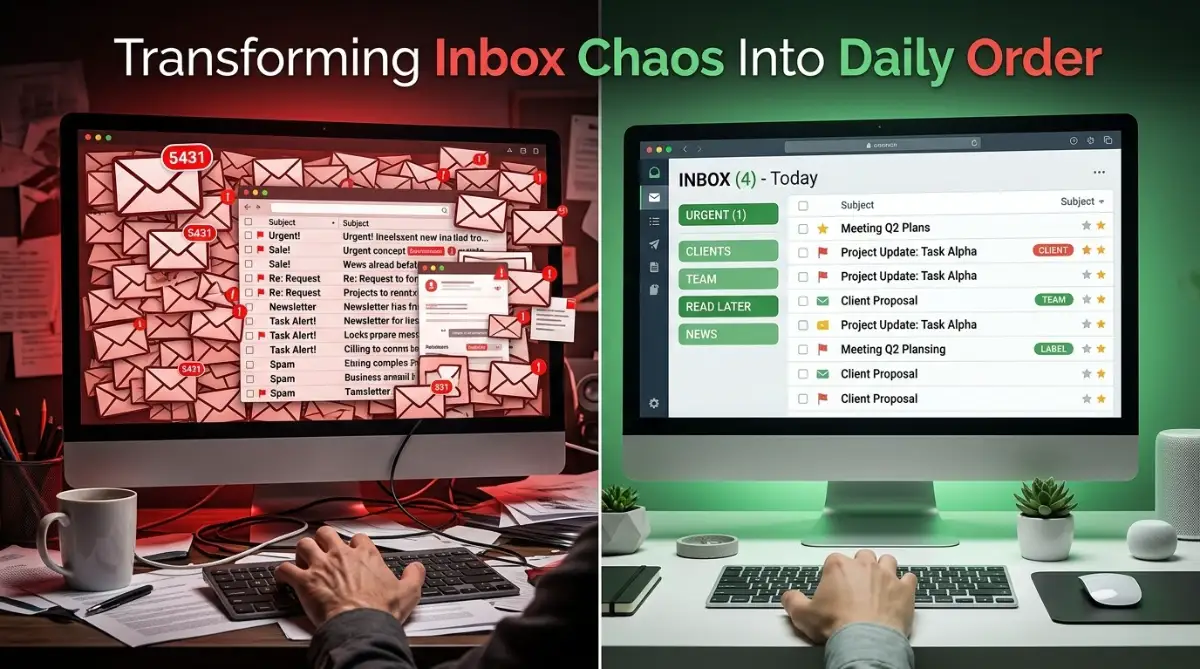
Most people try to fix inbox clutter by creating dozens of manual folders and colorful labels. You spend hours dragging messages into neat categories on Monday, but by Thursday, the chaotic mess returns stronger than ever.
Manual sorting fails because it demands your active energy every single day without offering any intelligent help. It expects you to act like a human robot, reading every line of text just to figure out where it belongs.
Traditional email filters are rigid and simple. They can only catch exact words or sender addresses, which means they easily miss important context.
If a urgent message comes from a new client with a subject line you did not predict, basic rules usually dump it straight into your general inbox. You end up right back where you started, spending valuable hours manually reading and sorting.
This is exactly where intelligent language software changes the game forever. Free smart tools do not just look at keywords; they understand the true intent and urgency behind every sentence.
They can read a long email chain, extract the main point in two seconds, and draft a thoughtful response for you. By shifting from manual sorting to smart workflow helpers, you turn your inbox from a source of stress into an organized asset.
Practical Ways to Automate Your Inbox Workflow
Setting Up Smart Text Categorization
The very first step toward inbox freedom is teaching a free smart tool to categorize incoming messages for you. You do not need to buy expensive corporate software or write complicated computer code to do this.
You can use popular free tools like ChatGPT or Claude alongside your regular Gmail or Outlook account. Simply copy a batch of incoming email subject lines and paste them into your digital assistant with a clear sorting instruction.
Ask the system to group the emails into three simple buckets: Urgent Actions, General Information, and Low-Priority Newsletters. Within seconds, you get a clean breakdown of what actually needs your attention right away.
This simple exercise helps you spot patterns so you can set up precise, automated filters in your email client. Instead of feeling buried under fifty messages, you instantly know which three emails require a real response today.
Prompt Example to Copy:
"Act as an executive assistant. Read these 5 email subject lines and categorize them by priority (Urgent, Routine, Low). Here are the emails: [Paste Text]."
When you categorize your inbox this way, your brain stops treating every notification as a major emergency. You regain the mental freedom to focus on high-value tasks while keeping routine communication under complete control.
Building Reusable Smart Reply Templates
Think about how many times a week you send the exact same response to different people. Whether you are confirming a meeting, acknowledging a received file, or answering standard pricing questions, you are likely repeating yourself daily.
You can ask a free smart helper to write flexible, natural-sounding reply templates for these recurring situations. Tell the assistant your preferred communication style, whether you want to sound warm, formal, or brief.
Once you have three or four polished templates, save them directly inside your email app using built-in features like Gmail Templates or Outlook Quick Parts. The next time a routine inquiry arrives, you can load your saved draft, tweak one or two personal details, and hit send in under ten seconds.
My Personal Realization:
I used to feel guilty for not writing every single email reply completely from scratch. Once I started using smart templates for routine confirmations, I saved over four hours a week without losing any warmth in my client communication.
Want to see how easy it is to set up automated email filters in real-time? Watch this quick video guide below to master your inbox settings, then keep reading for advanced productivity tips!
Summarizing Long Email Threads Instantly
We have all experienced the dread of being added to an ongoing email chain with thirty previous replies. Reading through back-and-forth arguments, inline comments, and signature blocks can easily waste thirty minutes of your afternoon.
Instead of reading through every single line, copy the entire thread text and feed it to your free writing assistant. Ask the tool to give you a three-bullet summary of the main decisions made and any specific tasks assigned to your name.
This technique gives you complete clarity on complex discussions in less than thirty seconds. You can jump straight into the conversation with a clear, informed response without reading through endless digital noise.
By using thread summaries, you protect your focus while staying fully informed on important group projects. It is one of the most effective daily habits you can build for workplace efficiency.

Advanced Strategies to Keep Your Inbox Clean Long-Term
Creating Custom Context Prompts for Your Voice
If you want your automated draft replies to sound genuinely like you, you must train your helper on your unique writing style. Default smart tools often sound overly polite, formal, or slightly robotic.
You can fix this easily through a technique known as style instruction. Copy three or four emails you previously wrote and paste them into your assistant box.
Tell the tool to analyze your sentence lengths, choice of words, and general tone. Ask it to save that profile so every future email draft it creates mimics your natural human voice.
When you use customized style instructions, your contacts will never guess that a software assistant helped draft the message. Your replies will stay warm, personal, and authentic while taking a fraction of the time to create.
Setting Up Free Cross-App Automation Tools
To take your inbox organization to the next level, you can connect your email account to free web automation tools like Zapier or Make. These platforms offer free starter plans that automatically connect your inbox with your calendar, task lists, and note-taking apps.
For example, you can build a simple rule that automatically creates a task in your favorite app whenever you star an email. You can also send email attachments directly to a dedicated cloud storage folder without opening a single tab.
Connecting these apps eliminates the need to manually copy information from your inbox to your daily to-do list. Your entire digital workspace stays synchronized automatically behind the scenes.
Setting up these simple connections takes less than fifteen minutes, but it pays off with hours of saved effort every single month. It is the ultimate secret to maintaining a stress-free digital routine.
Unhealthy Habits That Ruin Your Email Efficiency
Even with the best smart helpers at your disposal, certain bad workplace habits can destroy your productivity. Steer clear of these common pitfalls to keep your inbox running smoothly.
1. Checking Your Inbox Continuously Throughout the Day
Leaving your email tab open all day guarantees constant interruptions that shatter your concentration. Every time a new notification pops up, your focus gets pulled away from your deep work.
Set two or three specific times during the day to check and process your messages. Outside of those planned windows, close your email app completely so you can work uninterrupted.
2. Letting AI Send Messages Without Human Review
Never set up a system that automatically sends generated replies to important contacts without your final stamp of approval. Smart software can occasionally misunderstand tone or hallucinate minor facts.
Always keep yourself in the loop as the final editor. Let the machine do the heavy typing, but take three seconds to read the draft before clicking send.
3. Storing Important Project Files Inside Your Inbox
Using your inbox as a long-term file cabinet makes finding crucial documents painful and slow. It clutter up your search results and keeps your digital workspace feeling messy.
Move important attachments immediately into designated cloud storage folders like Google Drive or OneDrive. Keep your inbox clean so it remains a place for active communication, not forgotten storage.
Smart Solutions to Common Inbox Questions
Are free AI assistants safe to use with private business emails?
Free tools are generally safe for routine, everyday correspondence, but you should never paste sensitive company financial data, passwords, or personal client records into public prompt boxes. Always replace private names, phone numbers, and figures with generic placeholders before asking an assistant for help.
Will my contacts realize that a smart tool helped write my email reply?
Not if you review and polish the draft before sending it. By feeding the assistant examples of your past writing style and making quick manual edits, your emails will retain your unique personal touch.
How much time can I realistically save by automating my daily emails?
Most users who set up smart templates, thread summaries, and priority sorting save between three to six hours every week. That extra time can be redirected toward important projects, creative work, or personal rest.
Your Daily Action Plan for Inbox Peace
Taking control of your daily email routine does not require a technical degree or expensive software subscriptions. By putting a few free smart tools to work, you can turn a chaotic, stress-inducing inbox into a smooth, organized workspace.
Start small today by setting up just one automated reply template or testing a thread summary prompt on a long message chain. You will be amazed at how quickly your daily mental fatigue melts away once you let technology handle the busywork.
I used to spend my Sunday evenings worrying about unread messages, but switching to smart inbox automation completely restored my weekly peace of mind. Give these simple habits a try today, and enjoy the incredible freedom of a clean, controlled inbox!
Disclaimer
This article is for informational and educational purposes only. The software tools and techniques mentioned are independent third-party solutions. Always ensure you follow your organization's legal privacy guidelines and data protection policies when processing emails through external software.


